Complete Configuration Guide for Installing Ubuntu 24.04 on an Old Laptop to Run OpenClaw/Hermes
If you plan to run automated AI agents like OpenClaw or Hermes, a 24/7 local node is essential. This article documents how to turn an idle laptop into an AI node by installing Ubuntu 24.04, and solve environment configuration and remote connection issues.
Share
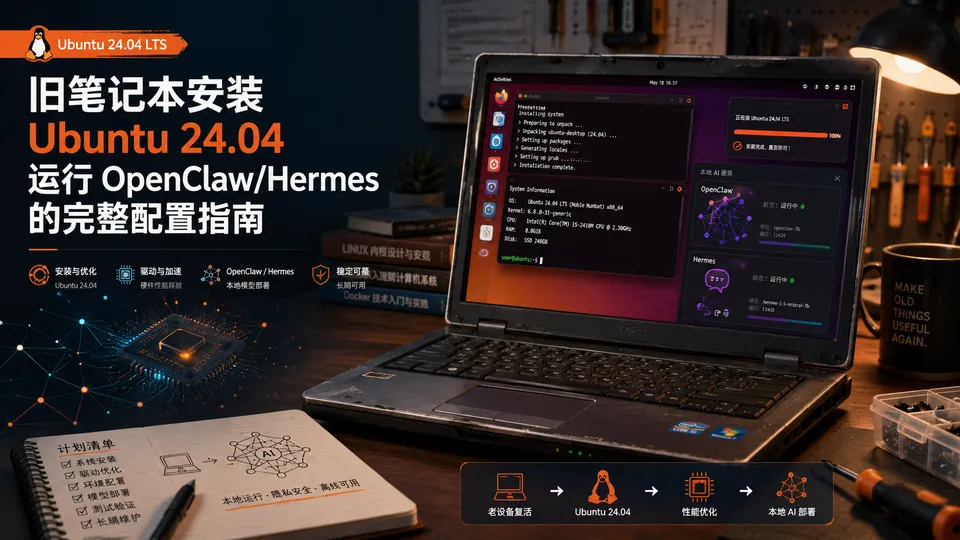
I found an old laptop, installed Ubuntu 24.04, and want to provide a step-by-step guide for others who want to install AI agents like OpenClaw or Hermes:
Basic Settings
Settings → System → enable SSH and Remote Desktop. Power → General → Power Mode → select "Performance". Power → Power Saving → disable all energy-saving options.
The goal is to keep the laptop running 24/7.
Install Chrome Browser and Plugins
After downloading, install:
sudo apt install ./google-chrome-stable_current_amd64.debThen install necessary plugins, such as Cookie-Editor and OpenCLI.
Set Close Lid to Not Suspend
sudo nano /etc/systemd/logind.confFind the line #HandleLidSwitch=suspend, remove the # (uncomment), and change suspend to ignore. The modified line should look like:
HandleLidSwitch=ignoreSave and exit (in nano: Ctrl+O, Enter, then Ctrl+X). Restart the logind service to apply changes:
sudo systemctl restart systemd-logindHow to Fix Error Code 0x207 When Connecting Remotely via MRD on Mac
Directly modify the .rdp configuration file. In Microsoft Remote Desktop on Mac, select Export. Find:
use redirection server name:i:0Change the trailing 0 to 1:
Note: If you cannot find this line at all, add use redirection server name:i:1 as a new line at the very end of the file.
Enjoyed this article?
Get product news, articles and store updates.
By subscribing, you agree to receive emails. Unsubscribe anytime.